
 English
 العربية
 Deutsch
 Español
 Français
 Italiano
 Português
 Русский
 Türkçe
 Tiếng Việt
Image Enlarger
Scale an image up to larger dimensions without jagged edges.
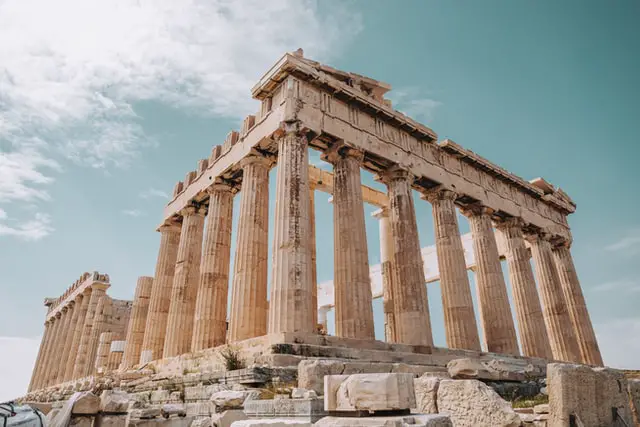





Enlarging an image is fundamentally different from shrinking one. When you make a picture smaller, you are discarding information you already have. When you make it bigger, the software has to invent pixels that were never captured — and how convincingly it invents them is the whole game.
What actually happens when you upscale
Doubling the width and height of an image means the result contains four times as many pixels, but the original only supplied a quarter of them. The rest are interpolated: the tool looks at neighbouring pixels and makes an educated guess about what belongs in between.
Good interpolation produces a smooth, slightly soft result. Bad interpolation produces visible blocks and stair-stepped diagonal lines. Either way, no detail is genuinely added — the picture simply gets larger and softer. Manage your expectations and you will be happy with what you get.
Enlarging an image
- Upload the picture you want to scale up.
- Enter your target width and height, or a scale factor such as 2× or 4×.
- Keep the aspect ratio locked so nothing gets stretched.
- Apply and look closely at the preview before committing.
- Download the enlarged image.
How to get the best result
- Start with the largest original you can find. Hunt down the source file rather than upscaling a thumbnail.
- Stay modest. Going up 2× usually looks fine; 8× rarely does.
- Flat graphics and logos enlarge far better than detailed photographs.
- If the source is a logo, look for a vector version instead — SVG scales infinitely with no loss at all.
- Do not upscale an image that is already blurry. You will get a bigger blurry image.
Upscaling questions
Can enlarging an image restore lost detail?
No. Detail that was never captured cannot be recovered. Interpolation makes the larger image look smooth rather than blocky, but it is filling gaps with plausible guesses, not with real information.
How much can I safely enlarge a picture?
Around 2× is comfortable for most images. Up to 4× can work for simple graphics with flat colour. Beyond that, softness becomes obvious no matter what method is used.
Why does my enlarged image look blurry?
Because the extra pixels are interpolated averages of their neighbours. Some softness is unavoidable when you stretch an image well beyond its native resolution.
Is it better to enlarge or to find a bigger original?
Always find the bigger original if one exists. Ten minutes of searching beats any amount of upscaling.
Does this work for printing?
Print needs roughly 300 DPI, so a small web image will rarely enlarge well enough for high-quality print. For anything important, get a proper high-resolution source.
